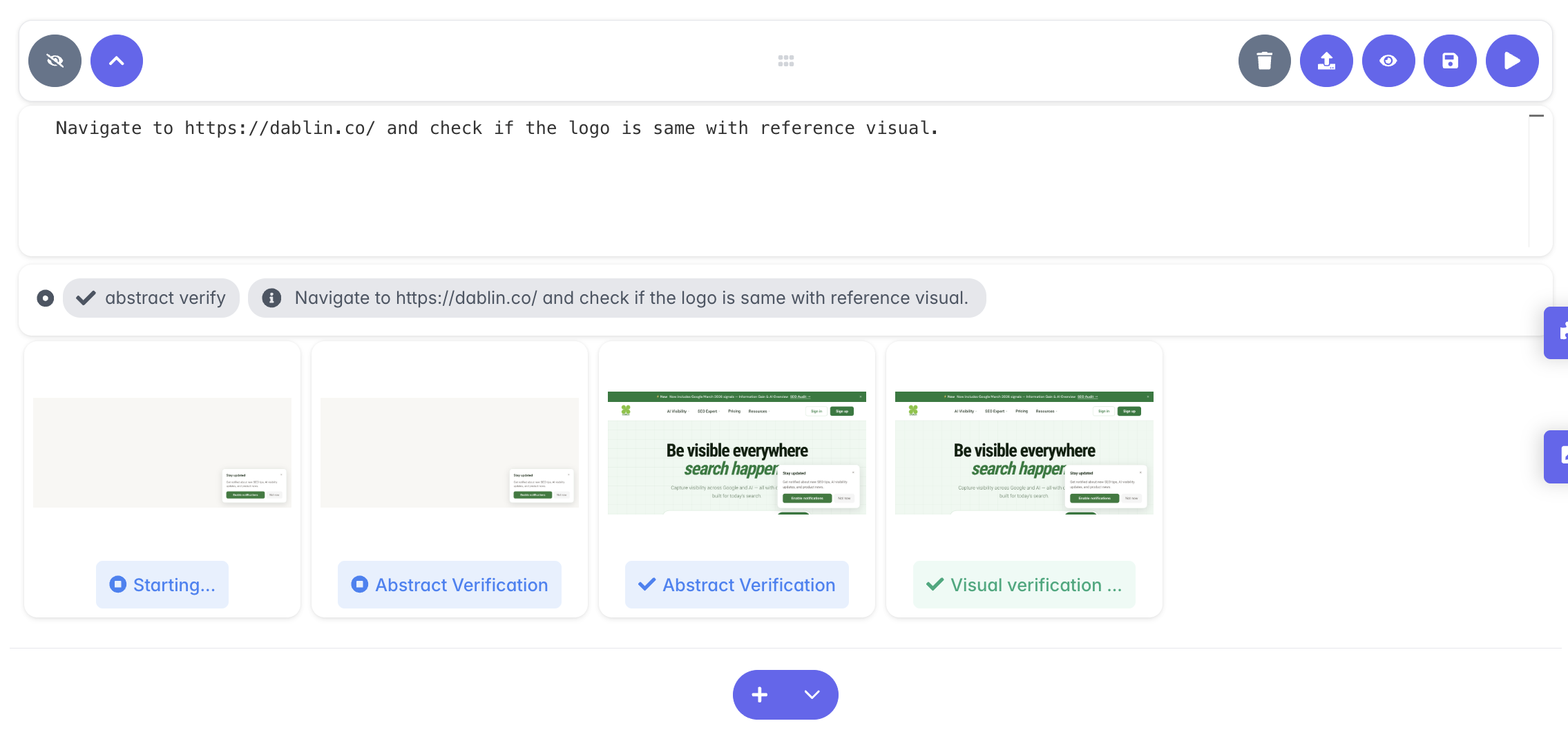
Upload a reference screenshot directly into the Visual Verification sequence step. Then write a plain text prompt describing what you want to check. Text2Test compares the current screen against your reference and asserts whether the visual conditions you described are met.
No configuration needed. You just describe:
No pixel thresholds. No config files. Just describe what you expect to see.
A button can be technically clickable and visually broken at the same time. Logic-based tests check behavior. Visual Verification checks appearance. Use both in the same test case to get complete coverage.
A logic-based test confirms the button is clickable and the action fires. It says nothing about whether the button is the right color, the right size, or even visible in the layout.
Layout shifts, color changes, missing elements, broken spacing, overlapping components. Visual Verification flags any difference between the current screen and the reference.
A single test case can run T2T Native steps for interaction, then a Visual Verification step to assert the screen looks exactly as expected after each action. Behavior and appearance, in one flow.
Visual Verification is one of five sequence types in Text2Test. Add it at any point in a test case. After a form submission, after a page transition, after an API call. It slots in wherever you need a visual check.
Write the steps in plain text. Text2Test Native reads the screen semantically and executes. No selectors, no DOM knowledge required.
Paste an existing script or auto-generate one and run it inline within the test. For precise programmatic control at a specific step.
Hand control to AI for complex flows that need reasoning. Autopilot navigates the product autonomously and hands back when done.
Compare the screen against a reference image or a baseline screenshot. Catches layout shifts, color changes, and broken spacing.
Call an API and assert on the response. Combine with UI steps to test the full stack in a single test case.
Mix and build in any order. A test case can start with a T2T Native step, run an HTTP request to set state, verify visually, inject a script for a specific action, and hand off to Autopilot for the final flow. All in one sequence.
Request a demo and we will show you Visual Verification running inside a real test case.
Start Testing